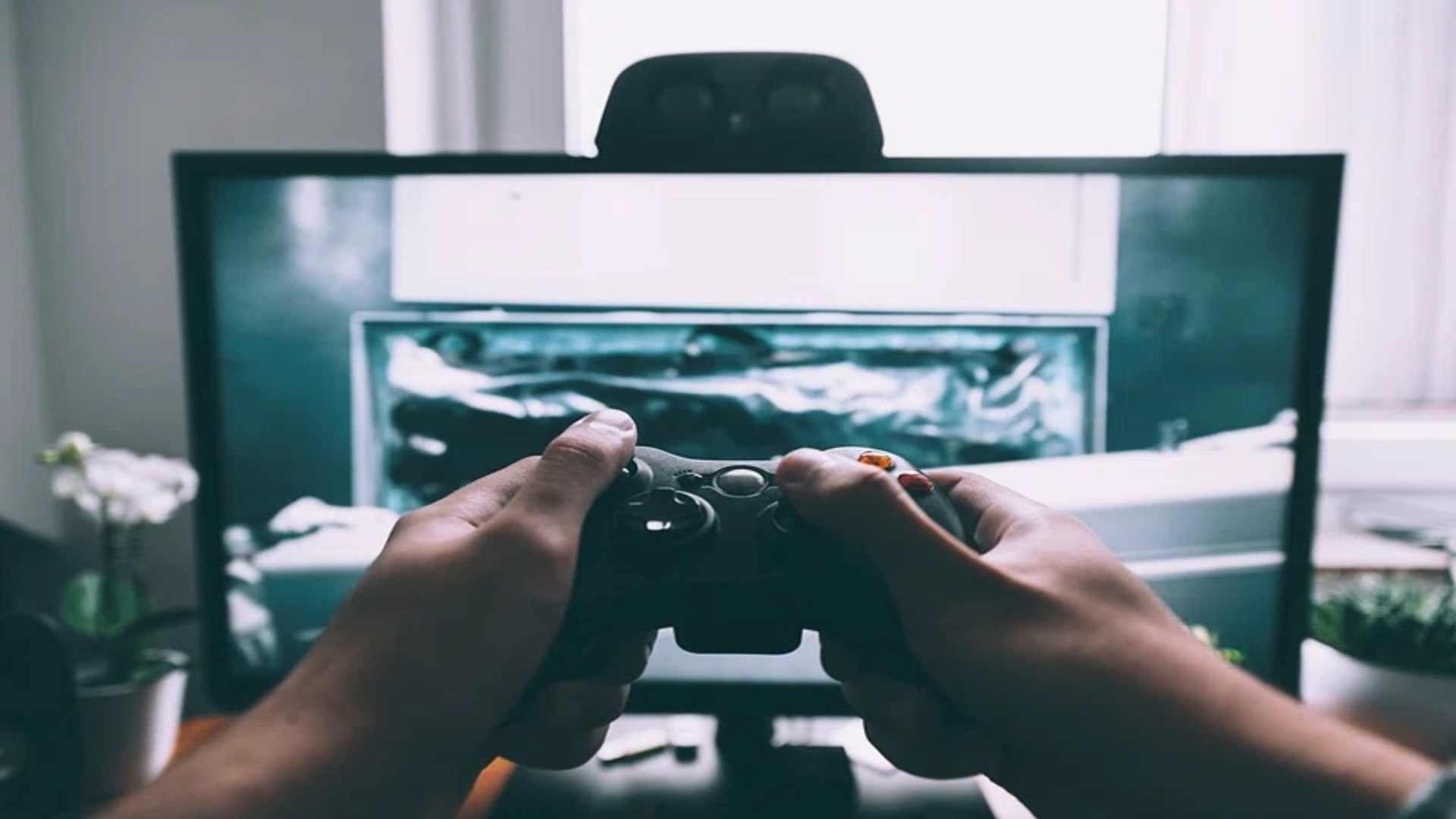
The DualShock 4 wireless controller remains a favorite choice for PC and Mac gamers who appreciate its ergonomic design and precise inputs. While standard Bluetooth connections work fine for basic configurations, utilizing a dedicated hardware dongle optimizes the entire peripheral experience. Understanding how to correctly configure this hardware ensures you unlock advanced features like integrated audio and touch pad responsiveness across your favorite applications.
Initial Synchronization and Hardware Connection
Setting up your official wireless hardware requires a brief initial syncing sequence to pair the peripheral securely. First, insert the compact adapter into an available USB port on your desktop or laptop computer while the system is powered on. Push the adapter body inward for several seconds until the small indicator light begins flashing rapidly to signal it is ready for discovery.
Next, grab your controller and press both the Share button and the central PlayStation button simultaneously. Hold these inputs until the light bar on the controller starts blinking rapidly to mirror the adapter status. Within a few moments, both lights will turn solid to confirm that the connection process has completed successfully.
Compatibility Across PC and Mac Ecosystems
Operating systems handle controller inputs differently depending on their native drivers and software environments. Windows applications recognize the specialized connection seamlessly, allowing players to utilize specialized streaming software like Remote Play away from their main console. Mac users running compatible versions also receive deep software integration that supports advanced button remapping out of the box.
Furthermore, major digital storefronts like Steam provide deep configuration overlays that let you customize specialized inputs for standard PC games. This specialized support bridges the gap between older direct input games and modern gaming standards without requiring complex manual file editing. Maintaining updated operating system patches ensures the ongoing stability of these peripheral connections over long gaming sessions.
Unlocking Advanced Controller Features
One of the primary advantages of utilizing a dedicated adapter over standard Bluetooth options is the expansion of supported hardware capabilities. Players can directly plug wired headsets into the controller jack to experience clear stereo sound and microphone input while gaming. The built-in touchpad also shifts function to allow cursor movement or custom gesture commands in supported titles.
These detailed physical behaviors mirror the original console experience much more closely than generic wireless connections. Players can enjoy accurate vibration feedback that matches the developer intent across various action-oriented titles. This immersion level makes the dedicated hardware connection highly desirable for competitive players who demand peak performance.
Troubleshooting Common Connection Issues
If you encounter sudden disconnects or sluggish response times, checking local wireless interference is a practical first step. USB ports located directly next to active external storage drives can occasionally disrupt the wireless signal frequency. Using a short extension cable to isolate the adapter away from dense electronic hubs often resolves intermittent signal drops instantly.
Additionally, verifying the status of your internal battery ensures the hardware receives adequate power to maintain a stable link. If software applications fail to register inputs, restarting the application before turning on the controller helps reload configuration profiles properly. These basic maintenance steps keep your hardware operating smoothly without the need for expensive third-party repair services.